ar drone 2 pc control software
SkyJack is a drone engineered to autonomously seek out, hack, and wirelessly take over other drones within wifi distance, creating an army of zombie drones under your control. by Samy Kamkar // code@samy.pl // Dec 2, 2013 Follow me on twitter: @SamyKamkar Discover more of my technology at https://samy.pl Today Amazon announced they're planning to use unmanned drones to deliver some packages to customers within five years. How fun would it be to take over drones, carrying Amazon packages…or take over any other drones, and make them my little zombie drones. Using a Parrot AR.Drone 2, a Raspberry Pi, a USB battery, an Alfa AWUS036H wireless transmitter, aircrack-ng, node-ar-drone, node.js, and my SkyJack software, I developed a drone that flies around, seeks the wireless signal of any other drone in the area, forcefully disconnects the wireless connection of the true owner of the target drone, then authenticates with the target drone pretending to be its owner, then feeds commands to it and all other possessed zombie drones at my will.

SkyJack also works when grounded as well, no drone is necessary on your end for it to work. You can simply run it from your own Linux machine/Raspberry Pi/laptop/etc and jack drones straight out of the sky. SkyJack (available from github) is primarily a perl application which runs off of a Linux machine, runs aircrack-ng in order to get its wifi card into monitor mode, detects all wireless networks and clients around, deactivates any clients connected to Parrot AR.drones, connects to the now free Parrot AR.Drone as its owner, then uses node.js with node-ar-drone to control zombie drones. I detect drones by seeking out any wireless connections from MAC addresses owned by the Parrot company, which you can find defined in the Registration Authority OUI. I use aircrack-ng to put our wireless device into monitor mode to find our drones and drone owners. I then use aireplay-ng to deauthenticate the true owner of the drone I'm targeting. Once deauthenticated, I can connect as the drone is waiting for its owner to reconnect.

I use node-ar-drone to control the newly enslaved drone via Javascript and node.js.
ar drone price in australiaDrone 2 is the drone that flies around seeking other drones, controlled from an iPhone, iPad or Android, and is also the type of drone SkyJack seeks out in order to control.
ar drone battery 2000SkyJack is also capable of seeking out Parrot AR.
parrot ar drone 2 spare battery The Parrots actually launch their own wireless network which is how the owner of the drone connects.
aerial photography drone priceWe take over by deauthenticating the owner, then connecting now that the drone is waiting for its owner to connect back in, exploiting the fact that we destroyed their wireless connection temporarily.
ar drone battery china
I use a Raspberry Pi to drive the project as it's inexpensive, reasonably light, has USB, and runs Linux.
ar drone price in canada I use the Alfa AWUS036H wireless card which supports raw packet injection and monitor mode which allow me to deauthenticate users who are legitimately connected to their drones.
how much does a reaper uav cost I also use the Edimax EW-7811Un wireless USB adapter in order for SkyJack to launch its own network. This allows me to connect to SkyJack from my laptop or iPad and watch all the other drones as they're being controlled. I suggest any USB battery which is light (under 100 grams), and can output close to an amp (1000mAh). The Raspberry Pi + wifi will likely use about this much juice. You could also possibly hook up three AAA batteries together to get about 4.5V out which would be a bit lighter, though I'm not sure how much current it will be able to output.
Feel free to contact me with any questions! You can reach me at code@samy.pl. Follow @SamyKamkar on Twitter or check out https://samy.pl for my other projects.As a portable gaming device, Shield is rather unique in that it has essentially two different modes of play. The first is to play games purely on the device, in Android, from the Play Store (and from the Shield Store onboard the device which contains links to Play Store applications). These use the full power of Tegra 4 to run and the onboard controls for gameplay. The second is a beta feature – GeForce PC streaming which enables the Shield to act like a wireless gaming controller and display for games played on the desktop. Let’s start with the Android gaming situation on Shield. Here NVIDIA is relying on the gaming ecosystem on Android to make the gaming console a viable option. At present NVIDIA advertises it has 131 total games that work well with Shield, 35 of which it has worked with developers to enhance for Tegra (for Shield) and exposed links to in the Shield store.

Including those 35 enhanced titles, it has a list of 131 games which it purports work with the gamepad support in Android and thus work well on Shield. I didn’t get a chance to play with all 131, but chose a smattering of titles from both. Some of the titles that NVIDIA has demoed previously I learned were from that second set (gamepad support, but not necessarily Tegra optimized) and work well on Shield, Android has good gamepad support and clearly NVIDIA has built a good profile for Shield to work with applications which are looking for one. The only friction point is what buttons get called, and sometimes it’s obvious that the developer has tailored them to a specific controller, but most of the time button names in tutorials and game menus are disambiguated enough to be obvious. I played Sonic 4 Episode 2 which is a continual NVIDIA tech demo game that both is easy to pick up, plays well, and is decently entertaining. Performance is way better than it was on Tegra 3, it’s butter smooth like you’d reasonably expect on Tegra 4, and the control surfaces work really well.

Riptide GP2 is another title that just about everyone shows off thanks to its visuals and easy gameplay. This title is fun and works really well on Shield’s controller, and obviously has some visual assets added for Tegra 4. I also played both Shadowgun games, Real Boxing, and Virtua Tennis Challenge, a title which isn’t a Tegra-enhanced game but is another example of a title that works great with the controller support. The titles that NVIDIA has worked with developers on seem to work really well, the rest of the Android gaming ecosystem with controller support likewise seems to lend itself natively to Shield. The problem is that there isn’t really a game on Android that draws me in and makes me want to keep playing for hours like there are on the desktop. Even though I spend a lot of time obsessing over Android graphics performance, I’m still looking for the kind of AAA title that Android really needs to sell itself as a gaming platform. That brings me to NVIDIA’s second option, which involves a desktop PC.
For this NVIDIA sent over a Falcon Northwest Tiki with a Core i7–3770K OCed to 4.2 GHz and GeForce GTX 760 inside. The way this second mode works is to use Shield as a portable controller and display for a game played on the desktop. The framebuffer gets grabbed, encoded on the GPU in H.264, sent over WiFi to the device, and the controller input gets piped back to the PC. My biggest concern when hearing about this architecture initially was latency and visual quality, and the WiFi link. Since Shield includes 2x2:2 dual band WiFi, most of the wireless link concerns are taken care of – this literally is the best possible WiFi from a connection robustness perspective shipping today thanks to the two streams (and implied diversity). Hit the console button and you can navigate over to a menu showing enabled PCs on the network you’re attached to. Inside that is the list of supported games in the steam catalog which are Shield enabled, and you can then launch and play those. This is enabled using a beta GeForce driver and Steam release at present, and NVIDIA recommends a good dual-band wifi AP for use with it (unsurprisingly) which was an RT-N66U in this case, I used my RT-AC66U which ASUS sent over since it’s 802.11ac enabled.

I played a lot of Borderlands 2 on Shield and didn’t really get a chance to try any other titles, but the experience with Borderlands should translate well to other games. In short, the PC games streaming component works surprisingly well. Video quality is great, with the rare stutter or two, and the stream is high quality enough that you can rarely see compression artifacts, which is especially surprising for a game like Borderlands 2 with its unique visual style. The one thing I did notice were audio hitches which happened occasionally, and that audio seemed slightly more delayed than video. The input latency is very minimal, I had no issues playing Borderlands which can be a bit twitchy and demanding at times. It’s there, but it’s much less than other WiFi mirroring standards like Miracast or AirPlay Mirroring. The obvious ultimate goal for NVIDIA is to stick all of the compute on a GRID and in the cloud somewhere, and get boxes spread out in major metro areas to get latency down low enough to make it viable.

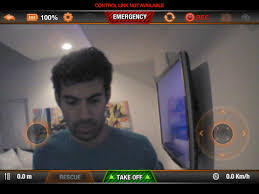
That’s been the promise of services like OnLive, Gaikai, and so forth for a long time. I found playing Borderlands from the couch or in bed probably the most fun part of the experience. It’s a lot of overhead and equipment to be able to play games in a different part of the house, but not being in the loud room with all the computers where I work all day made playing Borderlands even more fun. I also had no WiFi connectivity issues throughout my house, that 2x2:2 WiFi was a good choice for sure. NVIDIA also sent along a Parrot AR Drone 2.0 with Shield. Parrot has optimized their app for Shield, and uses the controller and buttons to control the drone. I’ve been looking at getting into flying quad and octacopter drones myself as a hobby for a while now for taking photos and video with a GoPro Hero 3 Black I purchased, specifically either a DJI Phantom or TBS Discovery and had only briefly played with the AR Drone 2.0. I spent a ton of time playing with the AR Drone 2.0 using Shield.