ar drone 2 custom firmware

This project provides an open source firmware for the AR.Drone quadrocopter by Parrot. WARNING: This project is not supported nor endorsed by Parrot S.A., using the this sofware will most likely void your warranty and might destroy your drone or make it fly away into deep space. The new firmware for the drone is called 'fly'. Upon start it will listen on UDP port 7777, waiting for the pc based contoller called 'OpenFlight' to connect. Once OpenFlight connects, 'fly' will kill the Parrot firmware 'program.elf' and takes over control of the drone. OpenFlight logs the flight data to a file called YYYYMMDDHHMMSS_navlog.csv. - The PID controller parameters have not been optimized yet and currently only use 'P' parameters. In particular the height controller will probably settle below the target height, or the drone might not have enough power to take off. - The OpenFlight user interface is very rudimentary. - No soft landing function is implemented. In order to land: fly the drone to minimum altitude and then switch off the motors.

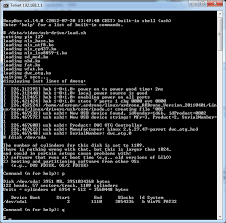
- 'Flat Trim' parameters are not saved and are estimated after OpenFlight connects. Place the drone on a horizontal surface before connecting with OpenFlight. - No battery voltage monitoring. The drone will fall out of the sky once the battery is drained. 1) FTP the folder ardrone/bin to your drone 2) Open a telnet session to your drone and execute: # chmod 777 /data/video/bin/* 3) On your pc, start OpenFlight.exe and follow the instructions on screen.Execute the following command to make 'fly' start everytime you powerup the drone: # echo -e "
/data/video/bin/fly &" >> /etc/init.d/rcS Other telnet commandline demo programs on the drone are: You'll need to execute `killall program.elf` before using these programs! # /data/video/bin/navboard - to see the navboard raw sensor data (3-axis accelleration, 3-axis gyro, sonar echos) # /data/video/bin/attitude - to see the navboard attitude data (pitch angle, roll angle, yaw angle, height)
# /data/video/bin/motorboard - to control the motors/leds # /data/video/bin/vbat - to see the on board voltages # /data/video/bin/video - turns the drone into a giant optical mouse, keep it about 1 meter above ground and move it parallel to the ground. The program should report the movement. ardrone/bin - Pre-compiled binaries. FTP these files to your drone and run them in a telnet session. ardrone/fly - Custom firmware to fly the drone, the controller is under pc/OpenFlight ardrone/navboard - Navboard driver and demo getting raw data from the navboard and converting it to realworld units (works) ardrone/attitude - Attitude driver and demo calculating attitude (pitch,roll,yaw and height) estimates from navboard data (works) ardrone/motorboard - Motorboard driver and demo control of the 4 motors and leds (works) ardrone/vbat - Battery voltage driver and demo (works) ardrone/gpio - GPIO driver and demo (works) ardrone/video - Video driver and demo (works, but needs start&kill of program.elf)
Published: Dec 25, 2013 at 19:24 UTC Merry Christmas (or Newtonmas if you prefer) everybody. Today I'm very happy to release the first version of my favorite side project, GoDrone.
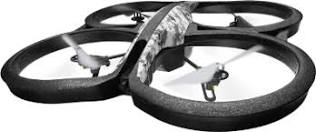
parrot ar drone portugal GoDrone is a free software alternative firmware for the Parrot AR Drone 2.0. And yes, this hopefully makes it the first robotic visualizer for Go's garbage collector : ). At this point the firmware is good enough to fly and provide basic attitude stabilization (using a simple complementary filter + pid controllers), so I'd really love to get feedback from any adventurous AR Drone owners. I'm providing binary installers for OSX/Linux/Windows: But you may also choose to install from source. Depending on initial feedback, I'd love to turn GoDrone into a viable alternative to the official firmware, and breathe some fresh air into the development of robotics software. In particular I'd like to show that web technologies can rival native mobile/desktop apps in costs and UX for providing user interfaces to robots, and I'd also like to promote the idea of using high level languages for firmware development in linux powered robots.
If you're interested, please make sure to join the mailing list / come and say hello in IRC: Subscribe to this blog via or or get small updates from me via . Last Update: Dec 25, 2013 at 19:24 UTCUpgrading the firmware on your Parrot AR 2.0 drone has many benefits. A firmware upgrade will fix any bugs or problems which Parrot have identified such as flying erratically or dropping while flying. The AR drone firmware upgrade may also bring new features such as better acrobatics and ease of flying. This article with video show you how to upgrade the firmware on your Parrot AR 2.0 drone. Connect a fully charged battery to your AR drone and your smartphone is also fully charged. Make sure your Parrot AR drone does it’s normal start up test. The 4 rotors should do their little jiggle. Your quadcopter should then be broadcasting it’s wi-fi signal. Go into your settings on your iPhone or Smartphone. Turn on Airplane Mode so you won’t receive a phone call while upgrading the firmware on your Parrot AR Drone.
Make sure you’re wi-fi is activated on your phone. Make sure you have no USB devices attached to your AR drone Connect to your Parrot AR drone Open up the AR drone FreeFlight App Make sure your AR Drone FreeFlight App is up to date. On the main screen on your AR FreeFlight software on your phone, click on AR drone update. Click ok to confirm that you have no USB keys attached to your AR drone Next, you cellphone will start sending the firmware file to your Parrot AR drone When the file has gone across your Parrot AR drone will restart. The LEDs will go red. On restart your AR drone will start installing the firmware. After a short period the lights on the Parrot AR will go off and then blink red. On your cellphone, it will say “installing”. Next, each rotor in turn will do a little jiggle followed by green LED’s on front and back. Sometimes your WiFi may disconnect at this point. Reconnect if this happens and open the AR FreeFlight software.